
.webp)
Voice agents should not always speak everything they generate. In production, LLMs often return code, tags, or JSON that your app needs — but the user should not hear it.
To support this, Agora Conversational AI provides skip_patterns, which allows parts of the LLM response to be skipped by text-to-speech (TTS) while still available in the transcript and event data. This allows your application to parse structured data to drive UI, sync application state, or render code without the agent narrating syntax.
This post explains how skip_patterns works, why it exists, and how real apps use it — including voice coding, live shopping, onboarding, and support-style agents.
Why skip_patterns Exists
In a typical voice agent, the flow is: user speaks → ASR turns speech to text → LLM returns text → TTS turns that text to speech → user hears it. The same LLM output is also sent to the transcript (for captions, analytics, and your own event handlers).
The problem: the LLM often outputs more than you want the user to hear. Examples:
- Code — A coding assistant might return “Here’s a button” plus 50 lines of HTML. Reading every
<div>andonclickaloud is slow and not useful. - Structured data — A live-shopping agent might output
[[product_name: iPhone 15]][[category: Electronics]]. That data is meant for the app to parse and display in the UI, not for TTS to read literally. - Confirmation markers — An onboarding bot might need to send “[[field:name value:Bob]] [Bob] Thanks Bob. What’s your birthday?” so the client can update the profile; the user should only hear “Thanks Bob. What’s your birthday?”
If you don’t separate “what is spoken” from “what is machine-readable,” you either cripple the agent (e.g. “never output code”) or punish the user (e.g. TTS reading tags and markers). skip_patterns is the setting that lets you keep a single LLM response but send different parts to audio vs transcript: TTS skips the bracketed content; the transcript (and agent memory) keep the full text so your client can parse it.
The reason is simple: you need one stream of text to drive both natural speech and structured behavior. skip_patterns is how Agora lets you mark which parts are “for the user’s ears” and which are “for the app.”
How It Works in the Pipeline
Rough flow:
- User speaks → ASR produces text → sent to your LLM (e.g. custom callback).
- LLM returns a single string (e.g. “Here’s a button 【<!DOCTYPE html>…】 you can click.”).
- Engine splits that string for two outputs:
- TTS: The engine strips out the content inside any bracket type you listed in
skip_patterns. Only the remaining text is sent to the TTS provider. So the user hears “Here’s a button you can click.” - Transcript / memory: The full original string is kept. It’s what gets sent in transcript events (e.g.
transcription-updated) and what stays in the agent’s short-term memory. Your client receives the full string and can run regex (or whatever) to extract the 【...】 block and render it in the UI.
- Real-time captions may hide the skipped parts during playback, then show the full sentence in the final transcript — depending on product behavior; the important part is that your event payload has the complete text.
So “how” it works: bracket type is configured once in the join API; the model is instructed via prompt to use that bracket for “don’t speak this”; the client subscribes to transcript and parses the same brackets to drive UI. No second channel or custom protocol — just one text stream and a convention on delimiters.
What skip_patterns Is (API Detail)
skip_patterns is a property of the tts object in the Start a conversational AI agent (join) request body. You pass an array of integers; each integer represents a pattern code that corresponds to a bracket type. The TTS engine omits the content inside those brackets from the audio. The full message (including bracketed content) still appears in the transcript and in agent memory.
In your join payload:
"tts": {
  "vendor": "microsoft",
  "params": { ... },
  "skip_patterns": [2, 4]
}
The Five Pattern Codes

- Nested brackets: If you enable multiple types, the engine skips the outermost matching bracket pair (and everything inside it).
- Transcript: Skipped content may be hidden in live captions during TTS; the full text is available in the transcript event and in memory. Your client should always parse from the full message.
Choosing a bracket: use a type that does not appear inside your payload. For HTML/code, 【 】 is safe. For [[key: value]]-style tags or [[field: value:]] markers, pattern 4 is natural; just ensure your prompt and schema use that format consistently.
Use Case 1: Voice Coding Assistant — Don’t Read the Code
Goal: The user says something like “build me a button that shows an alert.” The agent should respond with a short spoken sentence and a full HTML document. The user hears only the sentence; the app shows the code in a live preview (e.g. iframe). Without filtering, TTS would read every tag and attribute — unusable.
Why use skip_patterns here: So the LLM can return one message that contains both “what to say” and “what to show.” The engine strips the code from audio; the client strips it from the transcript display and feeds it to the preview. One response, two channels. One response, two outputs — spoken audio and structured data
How it fits in the app: The agent is started with skip_patterns: [2]. The system prompt tells the LLM to wrap only the raw HTML (or code) in black lenticular brackets 【 】. On every assistant transcript message, the client runs a parser function that extracts 【...】, validates that it appears to be HTML, removes it from the spoken line for the transcript UI, and appends the code to a list that drives the iframe. Only final messages update the transcript and preview; interim messages can be used to show “Generating code…” so the user knows a response is being generated.
Screenshot: Voice coding assistant UI


Why This Bracket: 【 】 (Pattern 2)
Square brackets [] and parentheses () appear constantly in HTML, JSON, and JavaScript. If you used pattern 3 or 4, the engine might skip the wrong spans (e.g. inside <div onclick="...">) or the model could get confused. Black lenticular brackets 【 】 (Unicode U+3010 / U+3011) almost never appear in code or typical prompts, so they’re a safe, unambiguous delimiter. Agora’s pattern 2 skips content inside 【 】 only.
Agent Config
Set this when you call the join API (e.g. in your start-agent or equivalent route):
tts: {
  vendor: "microsoft",
  params: {
    key: ttsApiKey,
    region: "westus",
    voice_name: "en-US-AndrewMultilingualNeural",
  },
  skip_patterns: [2],  // skip content inside 【 ... 】
}
No other TTS options are required for this behavior; the engine applies the skip before sending text to the TTS vendor.
System Prompt (what to tell the LLM)
Be explicit so the model does not mix in markdown or other brackets:
- “When you generate HTML/CSS/JS code, you MUST wrap it in black lenticular brackets: 【<!DOCTYPE html><html>…</html>】.”
- “Put ONLY the raw HTML inside 【 】. No ```html or explanatory text inside the brackets. Text outside 【 】 will be spoken aloud — keep it brief (e.g. one short sentence).”
- “Start the code with <!DOCTYPE html> or <html> immediately after the opening 【.”
Example good output: “Here’s a button 【<!DOCTYPE html><html>…</html>】 that shows an alert.”
Example bad: “Here’s the code: 【```html … ```】” — the client strips ``` anyway, but raw HTML is easier to validate and render.
Client: Parse and Render (detailed)
You subscribe to transcript updates (e.g. transcription-updated or the callback your SDK uses for assistant messages). Each event gives you the full message string. You only want to update the transcript and the code preview on final messages; for interim messages you might set a “Generating code…” state if you see the opening 【 in the text.
Step 1 — Extract blocks: Use a regex that matches the bracket and everything inside it. The content can span many lines and include newlines, so use [\s\S]*? (non-greedy) so you don’t match past the first closing 】.
const codeRegex = /【[\s\S]*?】/gi;
const matches = Array.from(text.matchAll(codeRegex));
Step 2 — Validate and clean: Not every 【…】 block is HTML. The model might occasionally put a note in 【 】. So for each match, strip the outer 【 and 】, remove any markdown fences the model added, and only keep the block if it appears to be HTML (e.g. contains <!DOCTYPE or <html).
const codes: string[] = [];
let spokenText = text;
for (const match of matches) {
  let content = match[0].slice(1, -1);  // remove 【 and 】
  content = content.replace(/^```[\w]*\n?/g, "").replace(/```$/g, "").trim();
  if (content.includes("<html") || content.includes("<!DOCTYPE")) {
    codes.push(content);
    spokenText = spokenText.replace(match[0], "");  // remove from spoken line
  }
}
Step 3 — Transcript: Append only spokenText to the transcript UI (so the user sees “Here’s a button that shows an alert” with no code). Optionally trim and collapse spaces.
Step 4 — Preview: For each entry in codes, create a new “code block” (e.g. with an id and timestamp), append it to your state, and set the active preview (e.g. iframe srcdoc or a code-viewer component) to the latest block. That way each response can add one or more previews.
Edge cases: If the LLM outputs multiple 【…】 blocks in one message, the loop above handles all of them. If it outputs no valid HTML (e.g. only 【some note】), codes stays empty and only the spoken text is shown; no need to show an empty iframe.
Use Case 2: Live Shopping (ShopScribe) — Product Tags in the Transcript
Goal: A host is on a live stream describing products. The agent listens to the host’s speech (via ASR) and outputs structured product data — name, category, brand, variant, price, short copy, theme, etc. — so the app can show a product card or overlay and keep a history. You don’t want the agent to read those tags aloud; you want them only in the transcript so the client can parse and drive the UI.
Why use skip_patterns here: The agent’s reply might be a long line of tags like [[product_name: Pikachu Holographic]][[category: trading card]][[theme: rare]]. If TTS were on and read that verbatim, it would sound like incorrect output. By setting skip_patterns: [4] (and optionally [3] for parenthetical notes), any [ ... ] content is omitted from audio. The transcript still has the full line so the client can extract each [[key: value]] and update the overlay and history. In ShopScribe, TTS is actually disabled; skip_patterns is still set so that if TTS is ever enabled (e.g. for a different flow), tags won’t be spoken.
How it fits in the app: The host (and optionally the audience) connects to the same channel and subscribes to the agent’s transcript. When an assistant message arrives, the client runs parseProductTags(text) to build a product object, checks isProductDisplayable(product) (e.g. at least one of product_name, short_copy, category is non-empty), and if true, sets that as the current product and shows the overlay. The same message is passed through stripTags(text) for the transcript/caption display so the viewer sees clean text (or nothing if the message was only tags). Product data can be pushed to RTM channel metadata so other clients (e.g. audience view) see the same state.
Screenshot: Live shopping product overlay


Why These Brackets: [ ] (Pattern 4), and optionally ( ) (Pattern 3)
The tag format is [[key: value]]—double square brackets. Enabling pattern 4 (square brackets) makes the engine skip the content inside [ ... ], so the whole tag (and any [value]-style segment) is dropped from TTS. In ShopScribe the prompt also allows (( ... )) for internal notes; pattern 3 skips parentheses, so those notes wouldn’t be spoken if TTS were on.
Agent Config
tts: {
  enabled: false,   // agent doesn’t speak; transcript is the main output
  vendor: 'microsoft',
  skip_patterns: [3, 4],  // 3 = ( ), 4 = [ ] — future-proof if TTS is enabled
  params: {
    key: process.env.MICROSOFT_TTS_API_KEY,
    region: process.env.MICROSOFT_TTS_REGION || 'eastus',
    voice_name: 'en-US-EvelynMultilingualNeural',
    sample_rate: 24000,
    speed: 1.3,
  },
}
System Prompt (tag schema)
The prompt defines the exact tag names and format so the client parser can rely on them:
- Schema:
[[product_name: ...]],[[category: ...]],[[brand: ...]],[[variant: ...]],[[features: ...]],[[condition: ...]],[[rarity: ...]],[[set: ...]],[[price_estimate: ...]],[[short_copy: ...]],[[theme: promo|rare|tech|apparel|other]]. - Policy: Emit tags as soon as you detect a coherent product; partial updates are OK (e.g. name + category first, then variant). Re-emit or override as the host adds details; latest value wins.
- Format: Only output in
[[key: value]]format. If not describing a product, output nothing or use(( ... ))for internal notes. Do not emit refusals like “not enough info.”
Example agent line:[[product_name: Pikachu Holographic Card]][[category: trading card]][[brand: Pokémon]][[theme: rare]]
Client: Parse Tags, Strip for Display, Drive UI (detailed)
Where this runs: In the host (and/or audience) page, in the callback that receives agent transcript messages — e.g. when onAgentResponse or transcription-updated delivers a new chat history, take the latest assistant message’s text.
Step 1 — Parse tags: Use a global regex that captures key and value inside [[ ... ]]. Reset lastIndex if you reuse the same regex object so each call starts from the beginning of the string.
const TAG_RE = /\[\[(\w+):\s*([^\]]+)\]\]/g;
const product = {};
let match;
TAG_RE.lastIndex = 0;
while ((match = TAG_RE.exec(text)) !== null) {
  const key = match[1]?.toLowerCase();
  const value = (match[2] || '').trim();
  if (key && VALID_KEYS.has(key) && value) {
    product[key] = value;
  }
}
VALID_KEYS is a set of allowed keys (e.g. product_name, category, brand, variant, features, condition, rarity, set, price_estimate, short_copy, theme) so you ignore any stray [[unknown: ...]] the model might emit.
Step 2 — Displayable check: Not every message will have enough for a card. For example, you might require at least one of product_name, short_copy, or category to be non-empty. If the check passes, set this object as the current product and show the overlay; optionally add it to a product history list and sync to RTM.
Step 3 — Strip for transcript/captions: For the text you show in the transcript or caption area, remove all [[...]] and collapse spaces so the viewer does not see raw tags:
function stripTags(text) {
  if (!text || typeof text !== 'string') return text || '';
  if (text.trim().startsWith('(')) return '';  // optional: pure note line
  return text.replace(TAG_RE, '').replace(/\s{2,}/g, ' ').trim();
}
const cleanedText = stripTags(text);
setTranscript(cleanedText);  // or append to caption buffer
Step 4 — Persist (optional): Push the parsed product to your product history (in-memory and/or RTM metadata) so the host can export or the audience can see a list; same data that drives the overlay.
Use Case 3: Onboarding Bot — Profile Markers Without Reading Them Aloud
Goal: An onboarding agent collects name, birthday, interests, bio, and experience. Whenever the agent confirms a value (e.g. after the user says “Bob”), the client must update the user profile in the backend and UI immediately. The user should hear only a natural spoken sentence like “Thanks Bob. What is your birthday?” — not “Name Bob. Thanks Bob. What is your birthday?” So the agent sends a single message that includes both machine-readable markers and the spoken sentence. With skip_patterns: [4], content inside [ ] (including the [[ ... ]] marker and the [value] echo) is not spoken. The transcript still has the full string so the client can parse and sync the profile.
Why use skip_patterns here: So the client can reliably know “this value was just confirmed” without the user hearing the raw field name and value. The agent follows a strict format: markers first, then the natural sentence. The engine strips the markers from audio; the client strips them from the visible chat and uses them to call the profile-update API.
How it fits in the app: The user joins a channel and the onboarding agent is started with skip_patterns: [4]. The system prompt includes PROFILE_CONTEXT (current known values) and strict “marker rules”: when a field is confirmed, the message must start with [[field:name value:value]] [value] then the sentence. On each final assistant message, the client runs normalizeAssistant(fullText), which returns { visibleText, fieldUpdate }. If fieldUpdate is set, the app calls onUserUpdate({ [field]: value }) (or similar) to persist the profile and refresh the UI. The chat bubble shows only visibleText so the conversation looks natural.
Screenshot: Onboarding chat and profile


Why Square Brackets Again: [ ] (Pattern 4)
The convention is one line per confirmation:[[field:name value:Bob]] [Bob] Thanks Bob. What is your birthday?
[[field:name value:Bob]]is the marker the client parses to get{ field: 'name', value: 'Bob' }.[Bob]is an echo of the value; it helps the parser and can be stripped so the user never sees it in the bubble.- “Thanks Bob. What is your birthday?” is the spoken part.
Pattern 4 skips both the marker and the [Bob] segment in TTS, so the user hears only the sentence. Using the same bracket type for “structured” and “echo” keeps the prompt simple and the parser consistent.
Agent Config
tts: {
  vendor: 'microsoft',
  skip_patterns: [4],  // square brackets
  params: {
    key: process.env.MICROSOFT_TTS_API_KEY,
    region: process.env.MICROSOFT_TTS_REGION || 'eastus',
    voice_name: 'en-US-EvelynMultilingualNeural',
    sample_rate: 24000,
    speed: 1.3,
  },
}
If you have a shared “ensure RTM + skip markers” helper (e.g. for different entry points), you can enforce skip_patterns there too: ensure tts.skip_patterns is an array containing 4 so profile markers are always skipped in audio.
System Prompt (marker rules)
The prompt must be strict so the client can depend on the format:
- When a field becomes known or is corrected, the message must start with the markers, then a single space, then the next question (if any). No text before the markers.
- Format:
[[field:<name|birthday|interests|bio|experience> value:<value>]] [<value>] <natural sentence>. - Allowed fields:
name,birthday,interests,bio,experience. Never emit empty markers or multiple field confirmations in one message. - Explicitly tell the model: “The bracketed segments are NOT spoken (tts.skip_patterns=[4]) but MUST appear in the transcript so the client can parse them.”
Example lines to include in the prompt:
- User: “Bob Barker” → Assistant:
[[field:name value:Bob Barker]] [Bob Barker] Thanks Bob. What is your birthday? - User: “1990–11–18” → Assistant:
[[field:birthday value:1990-11-18]] [1990-11-18] Great Bob. What are some of your interests or hobbies? - User: “Change my bio to I work at Agora.” → Assistant:
[[field:bio value:I work at Agora.]] [I work at Agora.] Got it Bob. Would you like to update anything else—name, birthday, interests, or experience?
Client: Normalize and Sync Profile (detailed)
Where this runs: In the component or service that handles transcript updates (e.g. the handler for transcription-updated that processes the chat history). Only process final assistant messages so you don’t apply the same profile update multiple times or from partial text.
Step 1 — Normalize: You need two things from the raw message: (a) the visible text for the chat bubble, and (b) an optional field update { field, value }. The marker always comes first; the optional [value] follows; the rest is the sentence.
const TAG_RE = /^\s*\[\[field:(name|birthday|interests|bio|experience)\s+value:([^\]]+)\]\]\s*/i;
const BRACKET_RE = /^\s*\[([^\[\]]+)\]\s*/;
function normalizeAssistant(raw) {
  let text = String(raw || "");
  let fieldUpdate = null;
  const mt = TAG_RE.exec(text);
  if (mt) {
    fieldUpdate = { field: mt[1].toLowerCase(), value: mt[2].trim() };
    text = text.slice(mt[0].length);
  }
  const bv = BRACKET_RE.exec(text);
  if (bv) text = text.slice(bv[0].length);
  return { visibleText: text.trim(), fieldUpdate };
}TAG_REmatches the leading[[field:name value:...]]and captures the field name and value. You slice that off and store the update.BRACKET_REmatches the optional[value]segment (single square brackets, no nested brackets) so you remove it from the visible text.- Whatever is left is the natural sentence for the bubble.
Step 2 — Apply profile update: If fieldUpdate is non-null, call your app’s profile update (e.g. onUserUpdate({ [fieldUpdate.field]: fieldUpdate.value })). That might update local state and/or call your backend so the profile panel and any other consumers stay in sync.
Step 3 — Show message: Append a message object with content: normalized.visibleText (and optionally rawContent: fullText for debugging). The user never sees the markers in the UI; they only see “Thanks Bob. What is your birthday?”
Edge cases: If the LLM sometimes omits the [value] echo, the visible text might start with a space or the sentence only—still fine. If it emits an invalid field name, you can restrict fieldUpdate to a allowlist (name, birthday, interests, bio, experience) and ignore others. Deduplicate by message id or content so reconnection or replay doesn’t double-apply the same update.
Use Case 4: Support Agent — Code and Reference Links
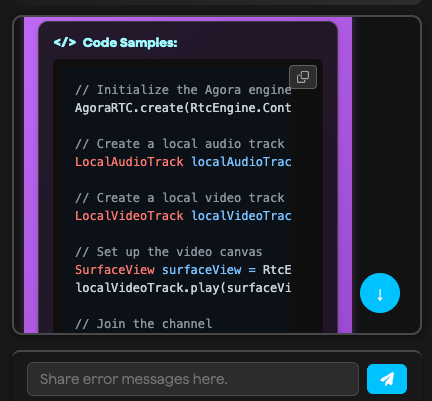
Goal: A voice support or help-desk agent answers from a knowledge base and often needs to cite code samples and documentation links. The user should hear only the spoken answer (e.g. “You can fix that by setting the parameter in your join payload. Here’s the relevant code and docs.”). The agent should not read the code or URLs aloud. The same response should drive both TTS and the UI: main text for speech, plus a code block and a list of clickable reference links in the transcript panel.
Why use skip_patterns here: So one answer can contain a voice-friendly summary plus structured code and references. With skip_patterns: [2], content inside black lenticular brackets 【 】 is skipped by TTS. The prompt instructs the LLM to wrap code in 【Code: ...】 and references in 【References: ...】. The user hears only the narrative; the client parses the brackets and renders code and links separately.
How it fits: The agent is started with skip_patterns: [2]. The system prompt defines a strict format: the main response must be plain, voice-friendly text; any code from the docs goes in a block like 【Code: ```language\n...\n```】, and any doc links go in 【References:\n- Title - URL\n】 (or similar). The client subscribes to the transcript, runs a parser that matches 【...】 (and optionally [...] for compatibility), and for each bracket block decides whether it’s code (e.g. starts with Code: or contains markdown fences) or references (e.g. starts with References: or contains URLs). Main text is what’s left after stripping those blocks; code is rendered in a code block with copy; references are rendered as a list of clickable links. No repo or screenshot is shared here—this pattern is used in production by a support-style voice agent.
Screenshot: Support agent — code and references

Why 【 】 (Pattern 2) Again
Same as the voice coding assistant: code and URLs contain [ ], ( ), and sometimes { }. Using pattern 2 keeps the delimiter unambiguous so the engine only skips the intended blocks.
Agent Config
"tts": {
  "vendor": "minimax",
  "params": { ... },
  "skip_patterns": [2]
}
(Or the same skip_patterns: [2] with your TTS vendor.)
System Prompt (concept)
- Main response: voice-friendly only; no markdown, no raw URLs in the spoken part.
- If the answer includes code from the knowledge base: put it in
【Code: ```language\n...\n```】. - If the answer includes documentation links: put them in
【References:\n- Title - URL\n】after the code block (or after the main text if there’s no code). - The order in the transcript is: main text (spoken), then code block(s), then references. The client strips 【…】 from the main text and parses each block for display.
Client: Parse and Render Code + References
On each final assistant message, run a regular expression that matches both 【 】 and optionally [ ] so you handle either bracket style. For each captured block:
- If the content starts with
Code:or contains ```, treat it as a code block: strip theCode:prefix and any fences, then append a code block (with copy button) to the message UI. - Otherwise if it starts with
References:or containshttp, treat it as references: split by newlines, parse “Title - URL” or “Title: URL”, and append a references section with clickable links.
Remove all 【…】 (and [ ] if you support them) from the main string and show that as the “spoken” text. Result: one response, three parts — spoken summary, code block, reference links — with nothing read aloud that shouldn’t be.
How to Utilize skip_patterns in Your Own App
- Choose a bracket type that won’t appear inside the payload (code → 【 】; tags/markers →
[ ]or( )). - Set
tts.skip_patternsin the join payload to the corresponding code(s) (1–5). - Document the convention in the system prompt: e.g. “Always wrap HTML in 【 】” or “Emit profile confirmations as [[field: name value: value]] [value] then the sentence.”
- Subscribe to transcript/assistant messages and run your parser on the full message text (not a pre-stripped caption).
- Use parsed data for UI (preview, overlay, profile) and strip brackets only for the caption or chat display so the user sees natural text.
Quick Reference

Where to Go From Here
- API: Start a conversational AI agent (join) —
properties.tts.skip_patternsand transcript behavior. - Demos: Try the three apps that use the patterns above:
- Agora Conversational AI Coding Assistant — code in 【 】,
parseAgentResponse, live preview. - ShopScribe — product tags
[[key: value]],parseProductTags/stripTags, live shopping overlay. - Onboarding bot — profile markers
[[field: value:]],normalizeAssistant, profile sync.
Clone a repo, search for skip_patterns and the parser names above, and run through the flow. Once you have one convention (bracket + prompt + parser), you can reuse it anywhere you need "say less, parse more" in Agora Conversational AI.
Some other ideas
You can push the same pattern further without building a whole new app. For example: semantic markers like [correct] or [wrong] in the agent's reply—the LLM emits them when the user's answer is right or wrong (e.g. in a quiz or a weather-guess flow). With skip_patterns: [4], the user never hears "correct" or "wrong"; the client parses the brackets and drives visual feedback (e.g. icon color, a quick checkmark or X).
Another direction: emotion in brackets for a client-side avatar. Have the model output cues like [smiling], [thoughtful], or [surprised] in the response. TTS skips them; your app reads them from the transcript and updates the avatar's expression or pose so the face matches the tone without the agent saying "I am smiling" aloud. Same idea—one stream, spoken part for ears, bracketed part for UI.
What creative use case for skip_patterns will you build? You might keep the agent’s voice natural while driving forms, quizzes, or in-game hints from bracketed output; or pipe structured commands into a dashboard, a CRM, or a second agent. The same idea — one stream of text, different roles for spoken vs parsed parts — fits wherever you want the user to hear one thing and your app to do another. We’d love to see what you build.


